Computer Maintenance Checklist For Windows XP OS
While buying a laptop or desktop, we care a lot to buy a good one. But how much do we care about it later on? The truth is you never think of routine computer maintenance at all until your system crashes! To avoid those irritating multiple crashes, hang-ups, snags etc., allot an hour or so monthly. Perform these computer maintenance activities to not end up with the frequent repair mode on your puter. A stitch in time saves nine!
Initially I outlined a brisk post on routine computer maintenance. However, I thought to elaborate a bit due to the bitter experiences I had with my computer in the past. Let me hope you are benefited from my experiences.
My OS (operating system) is Windows XP. These points predominantly refer to that OS only. So here is the computer maintenance checklist:
Emergency preparedness
- Create a boot disk to come handy at times of crash. This will help you if you do not have your original Windows XP CD with you or if your computer does not support CD-ROM/DVD drive. Nonetheless if your computer is not networked to any other computer as well. Check out Microsoft’s help center on How to obtain Windows XP Setup disks for a floppy boot installation. Please note that by default, the Microsoft Windows XP CD itself is a bootable CD. Mostly you may not need a bootable floppy diskette unless you do not have a CD-ROM/DVD drive in your computer or if your system is not networked. Booting from the Windows XP CD will not only allow you to install/re-install Windows XP but also to troubleshoot it. For troubleshooting bootable CDs not booting, refer How to or can’t boot from a CD or DVD?
Backup
- Backup any sensitive files concerned with your work away from your computer on removable storage devices. This frees up your hard disk space. As well, you will not be affected by any sort of crash.
- Back up your registry entries. Refer How to make a backup of your registry using regedit? You can safely restore your computer back to its original state by just restoring this backup. All you need to do to restore is to double click the backed-up file. You will be presented with a dialog box asking if you are sure to add the data to your registry. Click on Yes. Your system files will be restored to its former state, to the date you created your backup. You can have further information from Microsoft’s help center on How to back up and restore the registry in Windows. Alternatively, you may use System Restore to undo changes if problems occur. Furthermore, you can backup your hard drives with the aid of backup utility tool that comes along with Windows XP. Right click on the drive you want to backup, go to tools, and click on backup now.
Housecleaning

- Go to control panel. Click “Add or Remove programs.” Check the programs that are rarely used or not used at all. Remove them to improve the performance of your computer. So only minimum required files will be loaded on your next boot. You save resources like RAM, processor usage etc.
- Empty Windows temp, all other user temps, cookies, temporary Internet files, history, recycle bin etc. To do this either right click the C drive (or rather any drive you want to clean up), go to properties/general/disk cleanup. You can also access disk cleanup via start menu/all programs/accessories/system tools/ disk cleanup.
- If you’re a bit techie and want a single advanced program to perform the above two points, viz., 4 and 5, then the answer is C Cleaner. It will do the above two tasks in a single shot. Apart from these two tasks, the advantages are many. You may download it from C Cleaner download page.
- If you still need to be confident that it hasn’t left any traces of your passwords, bank documents, or some sensitive information back on your hard disk, erase them with Eraser.
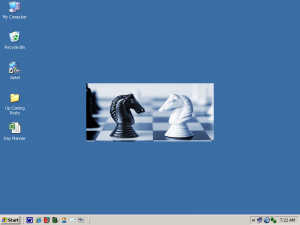
- The shortcut icons on the desktop is handy for everyone. However, all those unused or sparingly used icons clutter up the desktop. It is an irritating experience spoiling the overall mood when you look at the desktop. Look at my desktop. How clean it is!

Aren’t you feeling a sort of freshness to work on your puter with your desktop looking clean like this? Hence de-clutter your desktop. Create a new folder on the desktop. Dump all those unused or sparingly used shortcut icons on your desktop into this folder. These icons can be accessed as quickly as you access it from the desktop itself but with a clean-looking desktop.
Boost speed
- If your computer is slow, it may be due to those obsolete and bloated/fragmented files sitting in your registry. For better computer performance, keep the registry as compact as possible. Fix the registry errors with Easy Cleaner. Once you are done with this, defragment registry with tools like Free Registry Defrag.
- Run Disk Defragmenter. Icon for this is located at start menu/all programs/accessories/system tools. Else, right click on the disk you want to defragment, go to properties/tools/defragmentation.
Checkup
- Perform a thorough virus scanning. If you still haven’t installed a virus scanner, there are a lot of good freewares available like Avast and AVG.
- Most of the antivirus softwares come along with anti-spyware. For some reason if your antivirus is not having an anti-spyware function, install/run an anti-spyware like Spybot search and destroy. Be sure that nobody is spying you from inside your computer.
Update
- Check for the latest updates of Windows, MS Office, and Internet Explorer. Schedule automated updates wherever possible (anti-virus, Windows, MS Office, instant messengers or any other program/application) So you won’t compromise with security running those outdated version applications.
- Maintain your computer’s clock at par with the atomic clock servers of the NIST. Download, install, and ping your time with the nuclear clock with Atomic Clock Sync.
Okay, we are done with the software side of the maintenance. Your computer should be working perfect now with accurate time. Now let’s do the hardware side of the maintenance.
Maintenance
- Install a surge suppressor if you haven’t done yet. Check if the UPS has adequate battery backup. If the backup time has gone down considerably, replace the batteries. Wipe the UPS cabinet clean. Check whether all the cords are snugged in appropriately to avoid loose connectivity problems.
- Is your system time getting lagged for hours in a week? The coin shaped battery located on your motherboard in the CPU must have expired. It’s time to replace it. Call the service personnel of your vendor to replace the battery for you. You may try it yourself after going through How to change the battery in a computer?
- Dust is bad for your computer hardware. It leads to overheating of the components inside, especially the processor, and ultimately breakdown. So find time to blow out the dust inside your computer at least in a month or two. Remove the CPU’s cover and blow off the dust inside with vacuum cleaner. (Note that I said to blow off and not to suck in the dust due to the complexity involved). Check if the CPU’s cooling fan and all other cooling fans inside the cabinet are working.
Peripherals
- Dust the cabinet and monitor and wipe them clean. Clean the drives (CD, DVD, floppy). Clean the ports on the backside of your computer cabinet. Dust and dirt go left unnoticed being at the back there. Same thing with the back and the top of the monitor.
- Wipe the keyboard clean. If adamant dirt is there on the keys, wipe with soap solution soaked damp cloth. Take care to prevent any water/soap solution oozing into the keyboard.
- Wipe the mouse clean. Look for accumulated dirt underside the mouse and wipe it clean. Wipe the mouse pad clean. You may use the damp cloth here too but take care to avoid oozing inside the mouse.
- Wipe the printer clean. Print a test page. Make sure the printer is producing clean copies and the toner cartridges aren’t going to run out. If it is an inkjet printer, remove the cartridges and store them in a refrigerator when you are not using the printer. By doing so, you can avoid the ink getting dried off due to temperature especially in summer.
- If you are having an external modem to hook yourself to the Internet, wipe it clean. Check whether the cords are snugged in appropriately.
Maintenance for MTs
And this additional maintenance work for you, medical transcriptionists:
Dust and wipe the foot pedal and headset clean. Check for any loose connection in the cords. Occasionally, I used to have trouble with one side of the headset working and the other not. If any such doubt exists, change the wires because if the voice sways from one ear to the other, it’s an irritating experience.
And the last point to make your computer faster while at work: Open minimal set of windows/applications to consume less RAM and speedy function of the processor.
My computer was making all sorts of ugly humming noises. Dust gathered between the fan and the processor obstructed the cooling fan from revolving. I did the computer maintenance myself. It’s working like a charm now. Let this not be a one-time process. Find time to perform it once a month.
I believe you found these computer maintenance tips useful, whether it’s Windows XP, Windows Vista, Windows 7, Windows 8, or Windows 10. Do not forget to bookmark this post to come back again.